01SEND
Start with a short word.
Open Send, type HELLO, choose your output and press Send. Stop is available while a message is playing.
Sound, torch & screen Morse Code with FlintTHE FIELD SUPPORT GUIDE
A LITTLE HELP FROM BASE CAMP
An app by PonddMorse Code with FlintA few clear steps for sending, listening and learning Morse. Flint is here to help you get your bearings.
Available on the App Store · Morse Code with Flint

The app in action
Send SOS, join Flint on the Signal trail and try your first listening exercise. See the app in action, step by step.
Watch SOS progress through its dots and dashes.
Open the Signal trail and start with E and T.
Try the listening warm-up and choose your answer.
Real app footage · 31 seconds · Silent, with visual captions.
Recorded from an iOS simulator. The system controls at the right are part of the simulator.
The Send screen plays SOS and confirms the message was sent. The Learn screen opens with Flint’s Signal trail. Level 1 introduces E as one dot and T as one dash. A listening warm-up asks which letter was played. E is selected and the app marks the answer correct. This recording is silent; the app’s Morse tones are not included.
GET YOUR BEARINGS
Three ways to put a little Morse into your day.
Open Send, type HELLO, choose your output and press Send. Stop is available while a message is playing.
Sound, torch & screen
Use a clear tone or one steady blinking light. Match the starting speed and keep your signal source easy to pick out.
Set up reception
Explore 25 open lessons, build listening skills in Practice, or try Keying practice and the Daily challenge.
Lessons & little challengesFLINT'S FIELD NOTES
Choose Sound, Screen or Flashlight when a torch is available on your iPhone. Send supports the letters A–Z and spaces, up to 240 characters after normalization. Lowercase becomes uppercase; unsupported characters are shown so you can correct them.
Sending uses standard Morse spacing at 10–20 words per minute (WPM), with a default of 15 WPM. The preview shows how your message becomes dots and dashes.
Press Stop while sending. Leaving Send, moving the app to the background or an interruption also stops output. You can choose Sound or Screen when a flashlight is unavailable.
Screen and flashlight output use flashing light. Select these modes deliberately and take care around people sensitive to flashing light. Morse is designed for recreational communication and learning.
Reception targets clear tones from 500–900 Hz; 650 Hz is a useful starting point. Keep the source close enough to hear clearly without distortion. Noise, weak sound and nonstandard spacing can reduce reception quality.
Real-iPhone reception is still being validated in the development build. If listening stops or no text appears, include the exact displayed message when contacting support.
Camera Receive uses a 10 WPM starting speed. Begin with the sender at 10 WPM too. Faster dots can be missed because camera frames may not capture each pulse. Contrast, distance, motion, glare and exposure changes also affect results.
If frames are lost, partial decoding may reset while completed text stays visible. If capture stops, check its message, steady the source and try Start again.
Permission is requested when you press Start in the selected Receive tool. Opening Receive or Flint's tour does not request access.
After a denial, open Help in that Receive tool and choose Open app Settings. Enable the corresponding Microphone or Camera permission, return to Morse and press Start again. Other tools remain available when you decline access.
Leaving the tool, backgrounding the app, an interruption or an unavailable input can stop capture. A genuine microphone route change, missing audio samples or repeated camera frame loss can also require a fresh start.
Stop competing audio or camera use, check the intended input and try again with a short, clear message. For sound, match the sender's speed. For light, use 10 WPM and a single stationary source. Unresolved patterns are not proof that a full message was received.
If the issue repeats, send the exact error, iPhone model, iOS version and whether you used sound or light. You do not need to send private messages, audio or camera recordings to report a problem.
Open Learn and begin with E & T, or choose any of the 25 lessons. Every lesson is open in the current build. Stars and the suggested next step help you track progress without restricting exploration.
Practice builds listening skills across all 26 letters and adapts to your letter history. Character speed and overall listening speed are separate settings, so the gaps can give you thinking time.
Open Learn → Keying practice to reach Rhythm practice. Choose one of 25 tracks and Easy, Normal or Hard. After a four-beat count-in, tap dots and hold dashes as notes reach the white line, leaving the gaps clear. Your own tone plays over drum backing.
Calibration measures taps against clicks and saves timing for the current audio output only when you choose to use it. Recalibrate when changing speakers or headphones. Scores and stars are saved per difficulty. Pause, restart and exit controls let you stop a run.
Physical-device timing, especially with Bluetooth, is still being checked in the development build.
Listen to the full five-letter word, then answer each letter. You get two letter replays and one guess per letter; choose Next letter after feedback. Pattern assistance can help with unfamiliar letters.
There is no time limit, and elapsed time includes pauses and time away. Your attempt is saved, so a completed puzzle cannot be retried that day. A new puzzle starts at local midnight. Saved results support streaks and a spoiler-free share you choose to send.
Open app Settings → Field guide and tap Flint's tour card to revisit Send, Receive and Learn. Replaying the guide preserves your progress. On first launch, you can skip the four-page tour or resume it after relaunching.
Reset progress in app Settings clears learning, Rhythm and Daily progress, including streaks, and resets overall listening speed. It does not reset every app setting. Use it only when you want to begin those activities again.
BACK TO BASE CAMP
Questions, feedback or a signal that won't settle?
Made by Pondd. Thanks for spending a little time with Morse Code with Flint.
Tap the character or press Enter to change the dance.
Made with curiosity
Games, useful tools and small ways to learn. Explore all 21 App Store apps.

Practice blackjack card counting with short lessons, drills and Bandit the raccoon.

Use your iPhone’s motion sensors to see the direction and intensity of a putting slope.

Explore Buddhist teachings through short lessons, stories, reflection and journaling.

Type to fight back in a noir manuscript-horror game where the next word keeps you alive.

Add a smooth ball-flight tracer to golf swing videos and export a clip to share.

A sword-duel murder mystery told through moving ink, timed parries and conflicting accounts.

Pilot an interceptor through eight three-phase arcade boss battles with reactive fluid effects.

A portrait bullet-hell boss rush built around readable patterns, close calls and quick retries.

A political strategy game about winning city districts, outsmarting rivals and running for mayor.
Send Morse code with sound or light, learn with Flint and practice the rhythm of dots and dashes.

Read, listen and explore ten illustrated bedtime tales with Thai and English narration.

An AI-driven narrative RPG that builds a personal cosmic-horror story in the 1920s.

Guide Pip through compact puzzle towers, where every swipe changes the room.

Pixelate faces in live recordings or existing videos, with processing on your device.

Keep an 18-hole scorecard for your group and calculate settlements after the round.

Read the green, align your putt and make a touch stroke in a golfer’s-eye putting challenge.

Turn Thai payment slips into searchable records for personal use or a shop team.

Turn the sky into a sci-fi viewfinder with live, on-device camera effects and video recording.

Match blocks, chain combos and unleash character abilities in a one-on-one puzzle battle.
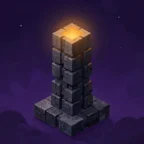
Stack falling slabs through eight atmospheric layers. Every misalignment stays with you.

Build a frontier AI lab, hire researchers and ship products in a satirical management game.
Visit an app’s website to learn more, or open its App Store page to download.
Explore the app on the App Store.
App Store ↗